PikScan is a mobile app to capture, qualify and follow up contacts at trade shows. It works offline: your data stays on your phone. OCR (business card text recognition) runs locally on the device.
Typical workflow
Phase
Goal
Prepare
Create an event, organize categories, build the visit plan, set up your card
Capture
Scan cards, qualify contacts on the booth
Follow up
Reminders, meetings, pipeline, dashboard
Export
Excel, CRM, vCard, full backup
2. Main navigation
Tab bar (bottom of screen)
Icon
Label
Route
Role
Store
Events
/tabs/events
Manage events and the active event
People
Prospects
/tabs/prospects
Contact list, search and filters
Scan (center button)
Scan
/tabs/scan
OCR capture and contact entry
Calendar
Calendar
/tabs/calendar
Meetings, reminders, exhibitor visits
Gauge
Dashboard
/tabs/dashboard
Today's actions, stats and ROI
The default home screen is Scan.
Quick access (header)
On most screens, the header includes:
Element
Action
PikScan logo
Brand home (depending on screen)
Avatar / profile (top right)
Menu: Settings · Manage categories · My business card
Export (share icon)
Export contacts or calendar (Prospects, Dashboard, Calendar)
Pro badge (dock)
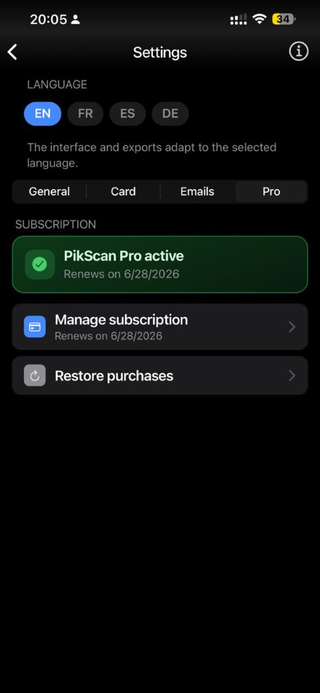
Access PikScan Pro subscription
Screens outside tabs
Screen
Access
Role
Onboarding
First launch
Getting started guide
Prospect detail
Tap a contact
Detail, notes, follow-up
Event hub
Tap an event
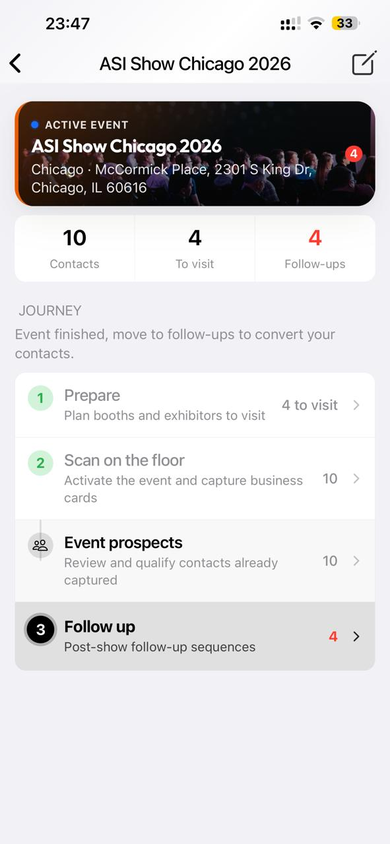
Journey 1 Prepare · 2 Scan · 3 Follow up
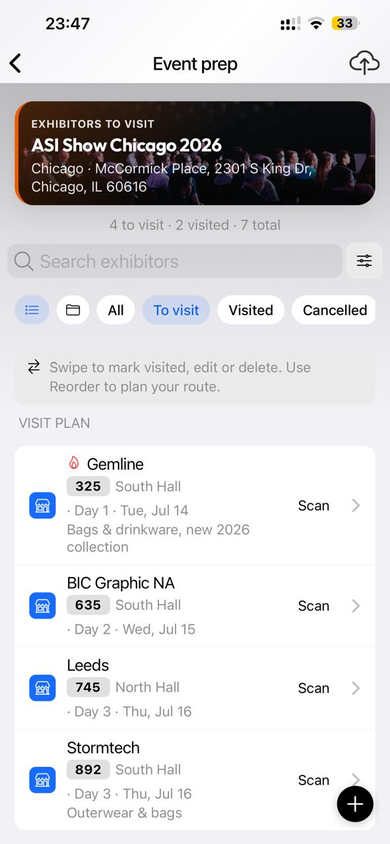
Event prep
Hub → Prepare step
Exhibitor visit plan
Post-show follow-up
Hub → Follow up step
Hot / warm / cold playbook
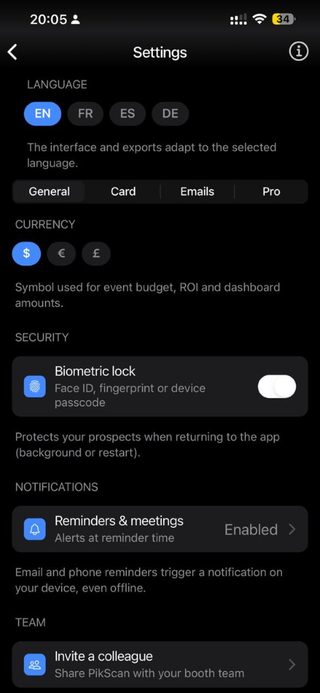
Settings
Profile menu or Dashboard
General settings
My card
Settings → Card or profile menu
Edit and vCard QR
Categories
Settings → Manage categories
Classification tree
About
Settings → About
Legal info and version
Paywall
Quota reached or Pro badge
Subscription
3. Getting started and onboarding
Welcome screen (3 steps)
Button / link
Action
Skip
Exit onboarding
Step X of 3
Progress indicator
Next / Back
Navigate between steps
Step 1: Create your event
Create my first event → Events tab
Step 2: Your business card
Set up my card → My business card screen
Step 3: Scan your contacts
Scan a card → Scan tab
Load demo data → Sample event to explore without scanning
Getting started checklist
Visible on Events, Dashboard and Settings until completed:
Step
Quick action
Create an event
Create
Set up my card
Set up
Organize categories
Organize
Scan a contact
Scan
4. Events tab
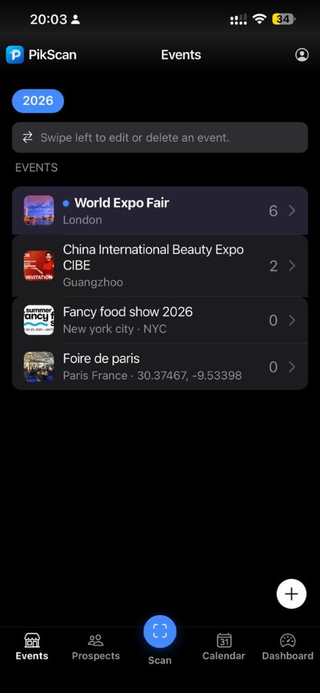
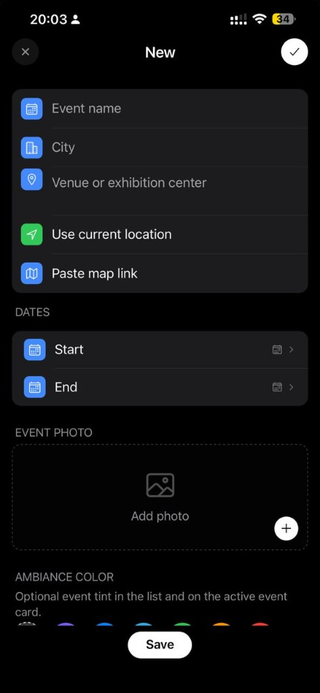
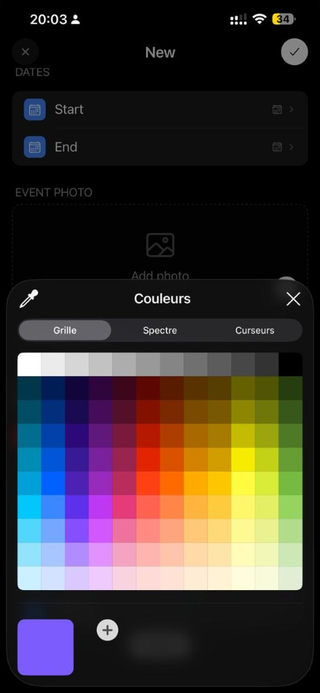
Events list: year filter and active event (blue dot).Event hub: journey 1 Prepare, 2 Scan, 3 Follow up.New event form: name, city, venue, dates, photo and ambiance color.Custom color picker for event ambiance.
Title: Events Role: Each event groups prospects, pipeline, ROI and visit plan.
Events list
Element
Description
Year filter
Clickable pills (2024, 2025…)
Quota (free)
e.g. 1/1 event: tap to upgrade to Pro
Blue dot
Active event (used for new scans)
Name, city, dates
Event information
Contact count
Number of linked prospects
Prep / follow-up counts
Exhibitors to visit and due follow-ups (also in the hub)
Swipe left
Prep · Edit · Delete
+ button (FAB)
Add an event
Action
Result
Tap an event
Opens the event hub (Prepare → Scan → Follow up) and sets it as the active event
Pull down
Refresh the list
Empty state
Create an event → Opens the creation form
Event form (New / Edit)
General information
Field
Description
Required
Event name
e.g. "SIAL Paris 2026"
Recommended
City
Event city
Optional
Venue or exhibition center
Address or venue name
Optional
Use current location
Fills venue via GPS
:
Paste map link
Google Maps, Waze, Apple Maps URL or coordinates
:
Dates
Field
Description
Start
Event start date
End
End date
Event photo
Action
Description
Add photo / Change photo
Image shown on the active event card
Ambiance color
Option
Description
None / Purple / Blue / Turquoise / Green / Orange / Red / Pink / Indigo
Tint in lists
Custom color
Native color picker
ROI & budget
Field
Description
Event budget
Amount invested (currency from settings)
Value / client
Average revenue per won client: used for ROI in Dashboard
Button
Action
Save (✓ or bottom)
Saves the event
Close (×)
Cancel without saving
5. Prospects tab
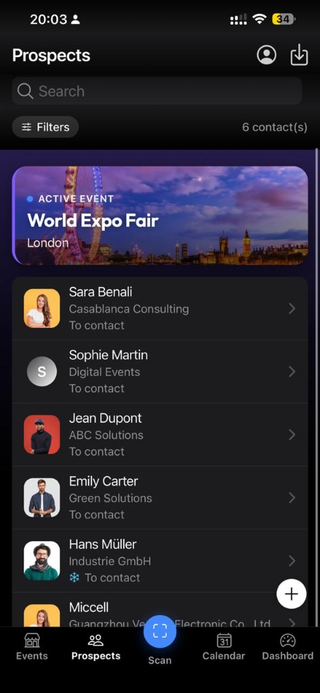
Prospects list with active event banner, search and filters.
Title: Prospects Role: Browse, search and filter all contacts.
Search bar and filters
Element
Action
Search
Filter by name, company, email…
List (icon)
Flat list view
Folders (icon)
Category tree view
Filters
Opens the filter panel
Active pills
Quick filter removal (×)
Clear all
Resets all filters
Quota (free)
e.g. 12/25 contacts
Export (header)
Starts export
Active event card
Shown when scope = active event (not "All events"):
Event name, location
Event prep button if exhibitors are planned
Contact list
Each row shows:
Initials or photo
Name, company
Qualification (🔥 Hot / ☀️ Warm / ❄️ Cold)
Pipeline status (To contact, In progress, Won, Lost)
Event name (if "All events" view)
Gesture
Action
Tap
Opens prospect detail
Swipe left
Edit · Delete
+ (FAB)
Manual contact entry
Filters panel
Section
Options
Scope
Active event · All events (Pro)
Type
All · Prospect · Client · Supplier · Service
Category
Parent category + subcategory
Pipeline
All · To contact · In progress · Won · Lost
Qualification
All · Hot · Warm · Cold
Button
Action
Reset
Clears filters being edited
Apply filters
Confirms and closes
Manual entry form
Same as the post-scan form (see section 6.3).
6. Scan tab
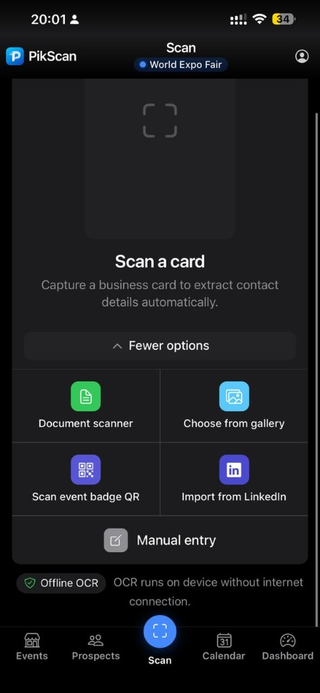
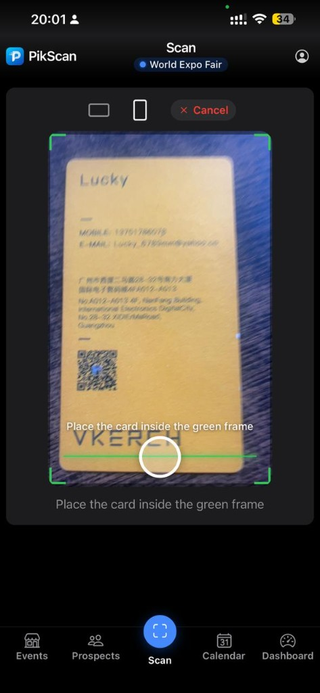
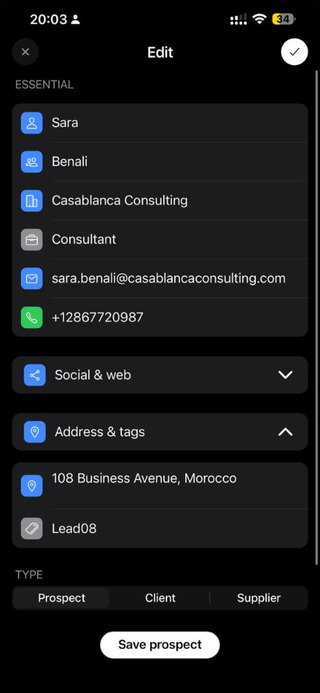
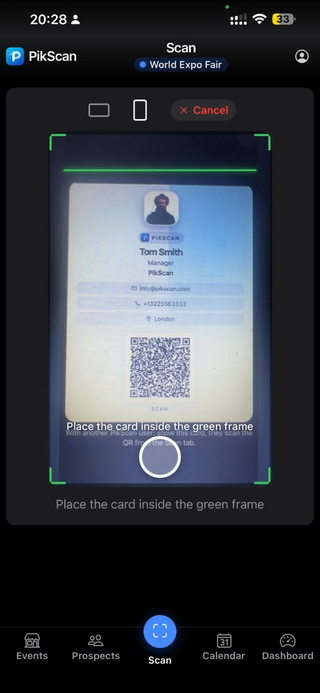
Scan tab: document, gallery, badge QR, LinkedIn, manual entry. On-device offline OCR.Live capture: align the card inside the green frame, then tap the shutter.Save prospect form after OCR: essential fields, type and qualification.
Title: Scan Role: Main entry point to capture contacts.
Header
Element
Description
Active event (name + green dot)
Tap → Events tab
Choose or create an event (alert)
If no active event
Cancel
Visible during save form
Capture area
Control
Action
Landscape / Portrait
Scan frame orientation
Center area
Tap to open camera
Green frame
Place the card inside the frame
Shutter button
Capture the photo
Cancel
Close camera
Messages :
"Place the card inside the green frame"
"Hold the card in the frame: auto capture" (if auto-capture)
Offline OCR badge: 100% on-device processing
More options (expandable panel)
Button
Description
Document scanner
Auto edge detection, crop (iOS/Android)
Choose from gallery
Existing photo
Scan event badge QR
vCard, LinkedIn, email, phone
Import from LinkedIn
Paste profile URL
Manual entry
Empty form
After capture: OCR analysis
"Analyzing card…" overlay
Then opens the Save prospect form
6.3 Save prospect form
Header button
Action
×
Cancel
✓
Save
Save prospect (footer)
Save
Essential section
Field
Icon
OCR detected
First name
Person
✨ if detected
Last name
People
✨
Company
Building
✨
Job title
Briefcase
✨
Email
Mail
✨
Landline
Phone
✨
Mobile
Smartphone
✨
Social & web (collapsible)
Field
Description
WhatsApp
WhatsApp number
WeChat
WeChat ID
Website
URL
LinkedIn profile
LinkedIn URL
Address & tags (collapsible)
Field
Description
Address
Postal address
Tags
Comma-separated keywords (suggestions offered)
Category
Field
Description
Category
One or more root categories
Subcategory
Subcategories of selected roots
Type
Option
Behavior
Client
Checkbox: combinable
Supplier
Checkbox: combinable
Service
Checkbox: combinable
(none checked)
Default: Prospect
Qualification
Value
Meaning
Hot
Strong sales potential
Warm
Moderate interest
Cold
Low priority
OCR text (if available)
Recognized text (OCR): expandable to verify raw text
7. Calendar tab
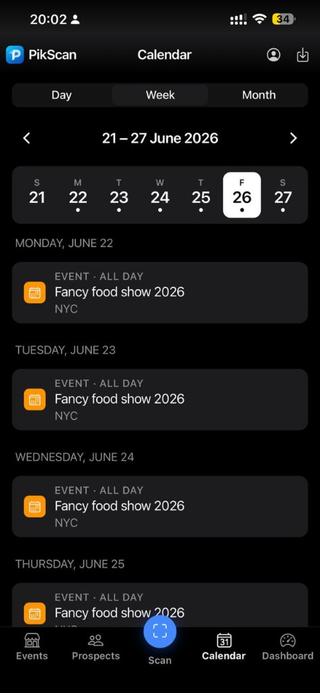
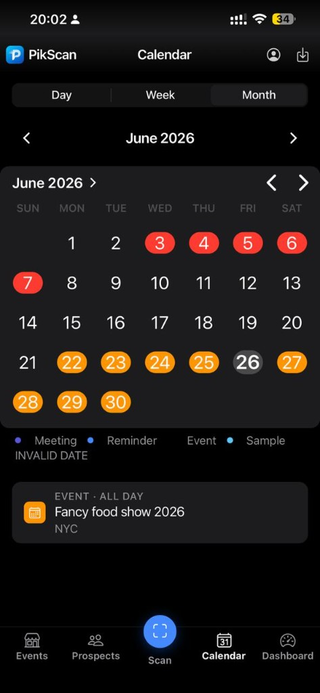
Week view: day strip and event list.Month view: calendar, type legend and selected day detail.
Title: Calendar
Views
Tab
Display
Day
Actions for selected day
Week
7-day strip + grouped list
Month
Calendar + actions for tapped day
Navigation
Control
Action
◀ ▶
Previous / next period
Center title (tap)
Back to Today
Event types (month legend)
Color / type
Label
Purple
Meeting
Orange
Exhibitor visit
Yellow
Reminder
Blue
Event
Green
Sample
Actions on an item
Type
Tap
Side buttons
Reminder
Opens contact
▶ Run (email/call) · ✓ Mark done
Meeting
Opens contact
:
Exhibitor visit
Opens event prep
:
Event
:
:
Sample
Opens contact
:
Calendar export
Via the Export icon in the header:
Month CSV / Month ICS
12-month CSV / 12-month ICS
8. Dashboard tab
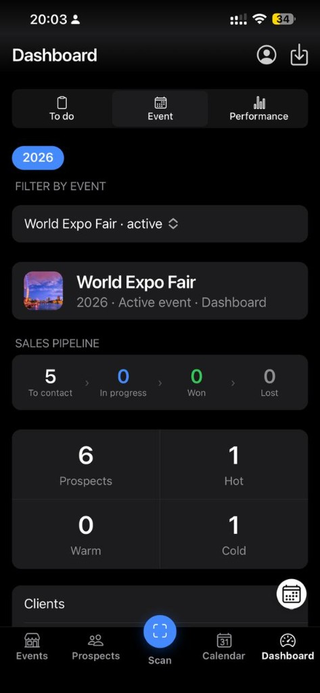
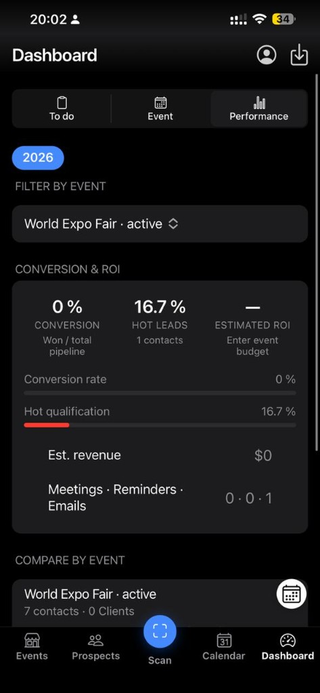
Event tab: sales pipeline and stats (hot, warm, cold).Performance tab: conversion, hot leads, estimated ROI and event comparison.
Title: Dashboard
Three internal tabs
8.1 To do
Block
Content
Calendar
Link to Calendar + today's action count
Upcoming meetings
Upcoming meetings list (tap → detail)
Reminders due
Email/phone follow-ups · ▶ open · ✓ done
8.2 Event
Element
Description
Year filter
Year pills
Filter by event
If multiple events
Event card
Photo, name, year
Sales pipeline
Counts: To contact → In progress → Won → Lost
Statistics
Total prospects, Hot, Warm, Cold
Type breakdown
Clients, Suppliers, Services, Prospects
8.3 Performance
Indicateur
Description
Conversion rate
Won / total
Hot leads
% of hot contacts
Estimated ROI
Based on budget and value/client (if set)
Estimated revenue
Projected revenue
Cost per lead / client
If budget is set
Activity
Meetings · Reminders done · Emails sent
Compare by event
If multiple events (Pro)
Link
Destination
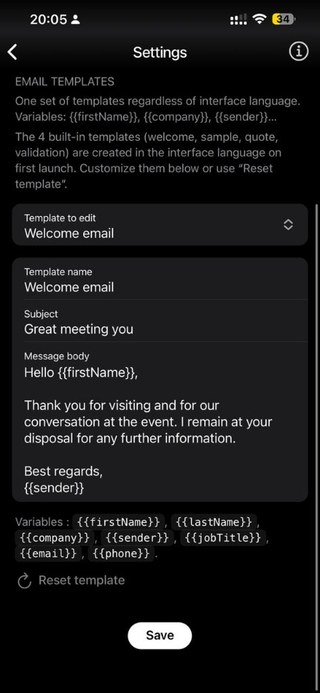
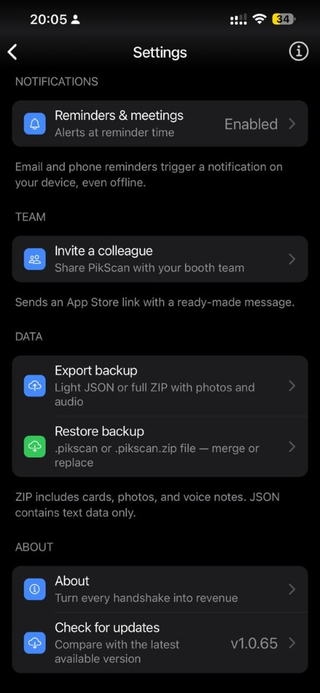
Settings & email templates
Settings screen
Calendar FAB
Calendar tab
9. Prospect detail
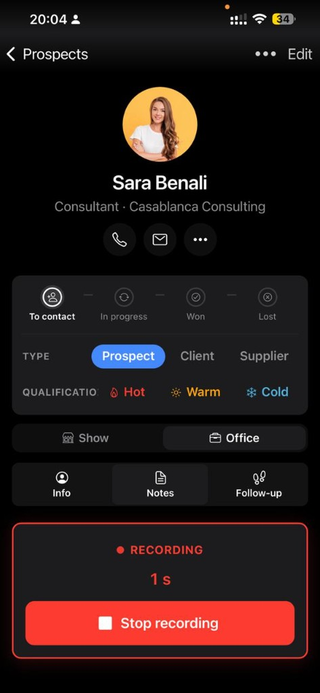
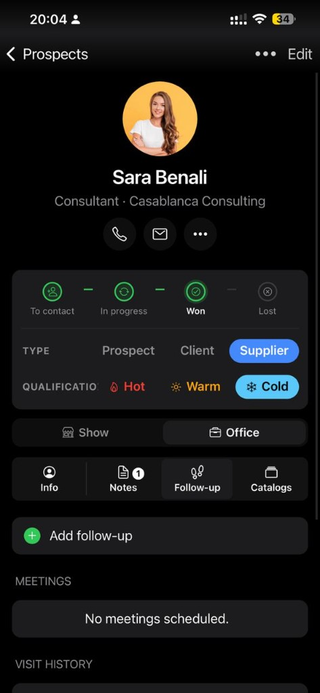
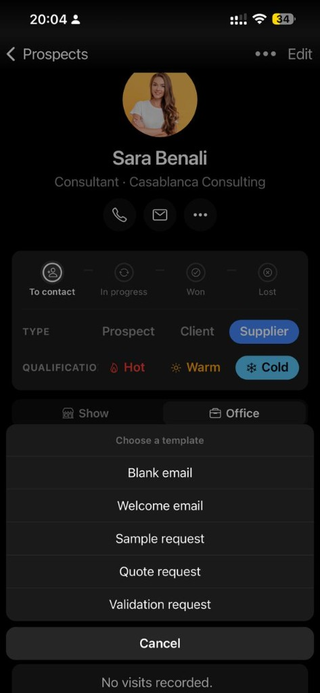
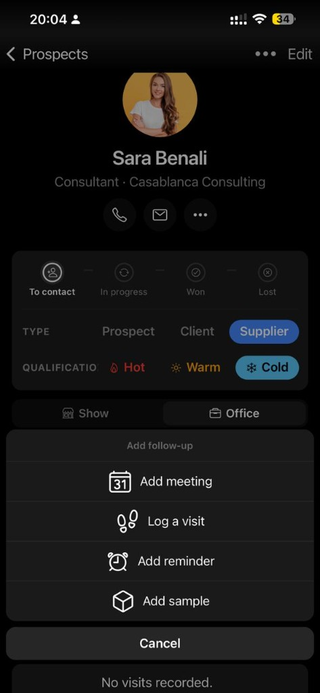
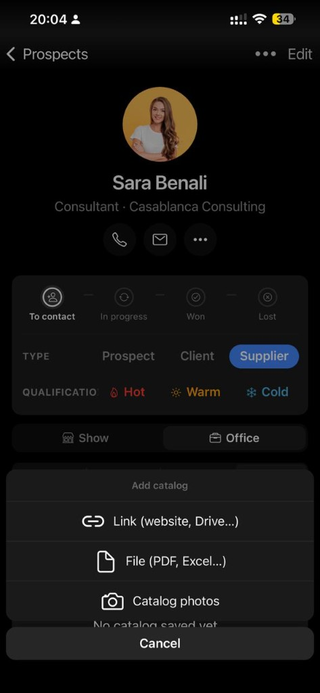
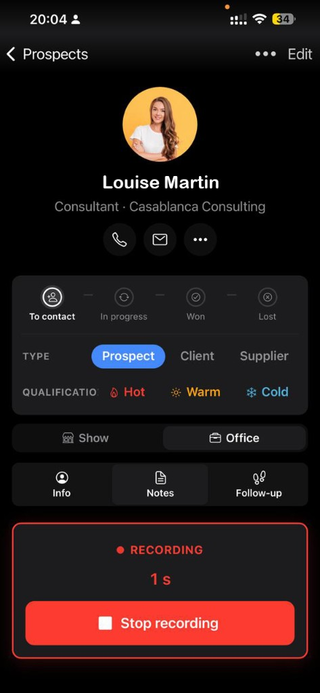
Prospect detail: pipeline, type, qualification and Show / Office modes.Edit prospect: essential fields, social links, address and tags.Send email: choose a template (welcome, sample, quote…).Add follow-up menu: meeting, visit, reminder or sample.Supplier: add a catalog (link, PDF file or photos).Voice note recording on the show floor (Notes tab).
Access: Tap a contact in Prospects or from Dashboard/Calendar.
Header
Button
Action
← Prospects
Back
⋯
Actions menu (delete, move, etc.)
Edit
Edit form
Bandeau contact
Photo or initial
Name, job title · company
Next reminder (if scheduled)
Call · Email · Share (QR) · More contacts
Pipeline and qualification
Interactive bar (pipeline component):
Status: To contact · In progress · Won · Lost
Qualification: Hot · Warm · Cold
Type: Prospect · Client · Supplier · Service
Detail modes
Mode
Usage
Show
Quick actions on the booth (voice notes, welcome…)
Each row: company, booth, hall, priority 🔥, visit time, reminder, category, status.
Geste / bouton
Action
Tap
Edit exhibitor
Swipe
Mark visited · Edit · Delete
Scan
Scan at booth
Contact
Link existing contact
Exhibitor form
Field
Description
Exhibitor or company name
Required
Booth number
e.g. Hall 3: B42
Hall / aisle
Show floor zone
Phone
Booth contact
Priority
High · Normal · Low
Status
To see · Visited · Cancelled
Visit day
D1, D2… (based on event dates)
Visit time
Planned slot
Create reminder
Notification before visit
Notify me before
X minutes before
Category
Classification
Tags
Keywords
Notes
Visit goal, target product…
Address / map link
GPS or Maps link
Use my location
Geolocation
Open map
Navigation
List import
Étape
Action
1
Import list (header or toolbar)
2
Choose CSV/Excel file
3
Add to list or Replace list
4
Review preview (duplicates, invalid rows)
5
Import
| Useful link | Download template: PikScan CSV to share |
Free limit: 25 exhibitors per event · Pro: unlimited
10bis. Post-show follow-up playbook
Access: Event hub → step 3 Follow up · Due count · Dashboard → Post-show follow-up · Local notification Route:/event/:eventId/followup
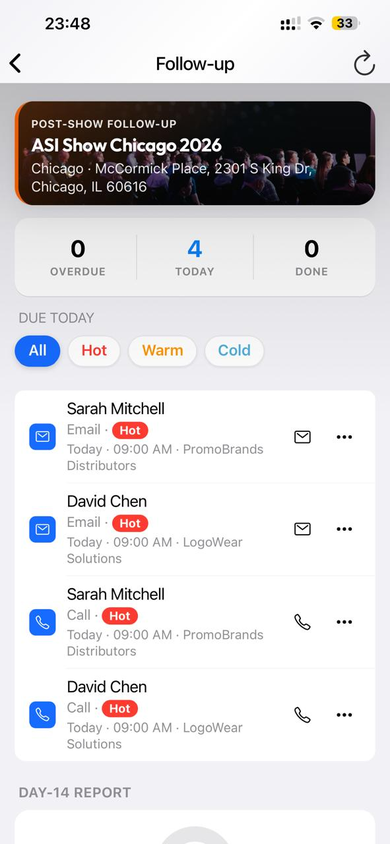
Post-show follow-up: today queue and hot / warm / cold filters.
After the show, PikScan builds a follow-up sequence per prospect from their qualification (hot / warm / cold), then shows a today queue.
Generate plans
Action
Result
Start follow-ups
Creates plans + steps (day 0 to day 14 per playbook)
Regenerate plans
Replaces active plans (confirmation required)
Plan
Behavior
Free
Hot plans only
Pro
All temperatures
“Due today” queue
Element
Description
Stats
Overdue · Today · Done
Filters
All / Hot / Warm / Cold
Row
Channel, temperature, due time: tap → prospect detail
Primary action
Opens email, call or WhatsApp then marks the step done
⋯ More
Done · Snooze +1 day · Skip · Open prospect
Free quota: 5 actions (done / skipped) per event · day-14 report locked. Pro: unlimited actions + day-14 report (completion rate and per-temperature breakdown).
Enable Notifications in Settings for local reminders.
11. My business card
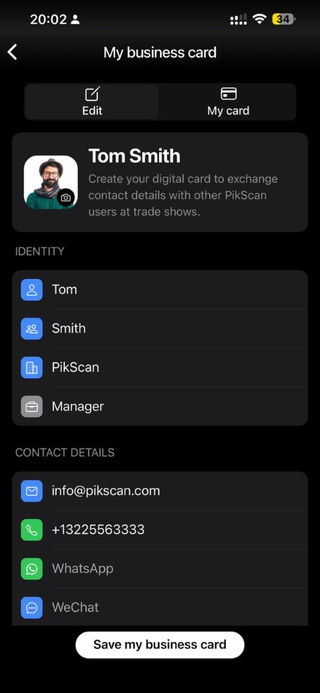
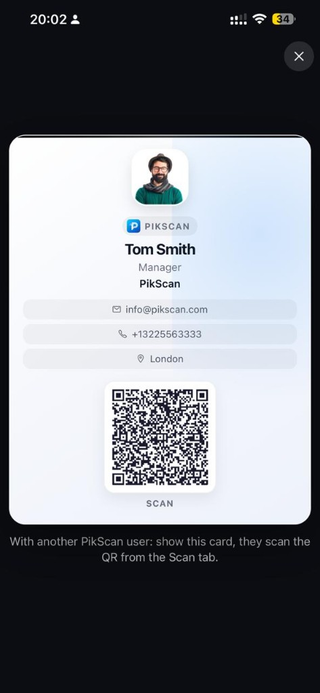
Business card editor: identity and contact details.Full-screen vCard QR: scan from the Scan tab.On the booth: the other user scans your QR from their Scan tab.
Access: Settings → Card · Profile menu → My business card · /profile
Edit tab
Identity
Field
Description
Photo
Tap to change (camera/gallery)
First name
Last name
Company
Job title
Contact details
Field
Description
Email
Phone
WhatsApp
WeChat
Site web
LinkedIn
Adresse
Location
Current location
GPS fill
Minimum required: name + email or phone to generate the QR.
Button
Action
Save my business card
Save
My card tab
Full-screen vCard display
QR code: "Scan"
Tip: Rotate the phone to landscape on the booth; the other person scans from the Scan tab